





The challenge: translations across several languages
In several of our applications, the texts for each language are in their own
TypeScript files as key-value pairs. Each key points to a message or
label in the interface, while the value contains the translated text.
English can, for example, be in english.ts, and Spanish in spanish.ts.
The customer delivers new translations in an Excel sheet where each row contains:
- a key corresponding to an entry in the TypeScript file
- the English text as a reference
- the translation into the target language
The structure is simple, but the amount can be large. To manually copy each line from Excel to TypeScript takes time and increases the risk of errors, especially when a key, a translation or variable is missing.
The solution: automatic updates with Python
We created a Python script that reads the Excel sheet and updates the TypeScript files automatically. The script finds the correct key, checks the translation and replaces the text in the correct language file. This is how the process works.
Step 1: Prepare the Excel sheet
Each language gets a separate sheet, for example "Spanish". The sheet has three necessary columns:
- Key: the identifier from the TypeScript file, for example
common.greeting. - English text: the reference that makes it easier to detect deviations and errors in variables.
- Translated text: the text in the target language, for example Spanish.
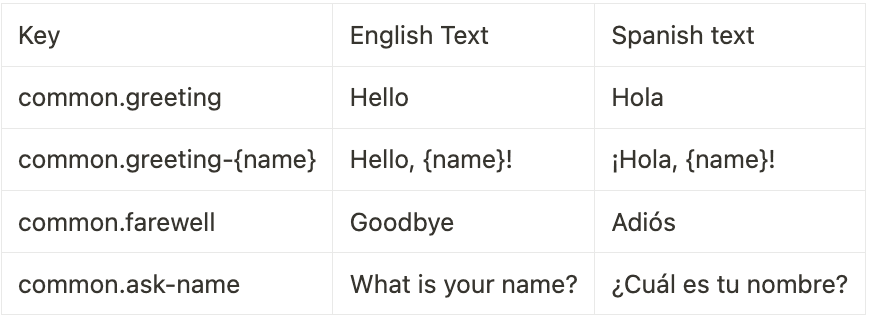
Usually the customer fills in the sheet after we have sent over the keys and the English reference texts. Here we assume that the sheet has been translated and is ready for import.
Step 2: Read and clear the data
With pandas the script reads the Excel file and filters out rows without a key or
translation. Thus, only valid data continues in the process.
Step 3: Find and replace the text in the TypeScript file
Before the import, the script checks for empty translations and variables that may have
been changed by mistake. Then it reads the TypeScript file line by line,
finds each key and replaces the old text with the new translation.
Finally, the result is written back to the language file, for example spanish.ts.
Any TODO-marks are removed when the update is successful.
We use regular expressions to split each entry into three parts: the key and characters up to the opening quote, the text itself, and the end of the line. The script can then change the text without altering the surrounding formatting.
Step 4: Clear logs and safe error handling
The script gives a short and clear status for each step. With colorama,
different message types have their own colors:
- Errors, such as a key not found in the TypeScript file, appear in red.
- Warnings about deviations in variables are displayed in yellow.
- Empty translations that are skipped are shown in turquoise.
- Successful updates are shown in green.

The colors are added by using Fore.COLOR_NAME in the relevant
print messages. The log makes it easy to find and correct deviations before the changes
go into production.
What we get in return for the automation
- Less manual work: What previously took hours can now be done in seconds.
- Fewer errors: Automatic checks catch missing translations, unknown keys and variables that have been translated by mistake.
- A solution that can withstand growth: The same workflow handles hundreds of texts and several languages without the manual work increasing accordingly.
A practical example
Once the client provides updated Spanish translations, we run
import_translations.py with one command. The script reads the Excel data,
checks the translations and updates spanish.ts. Variable errors,
missing texts and keys without matches are marked, so that we can quickly clean them up
before publication.
Conclusion
The automation not only saves time. It removes monotonous copying, gives better control and allows us to spend more time on the product itself. It's still a bit satisfying to see an hour's manual work done in one second.
If your team handles translations without a dedicated tool, a simple import flow like this is a good place to start. The goal is not a complicated system, but a reliable process that makes it easier to deliver the correct text in the right place.


